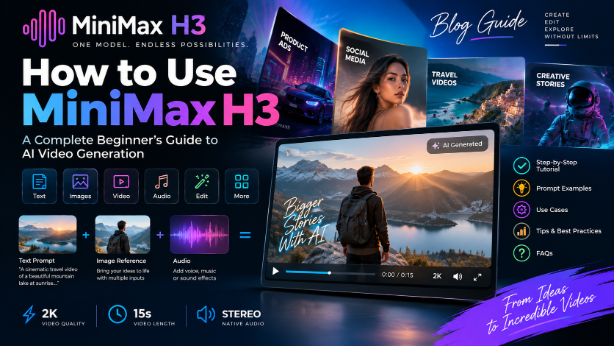
MiniMax H3 is a general-purpose multimodal generation model designed to work across text, images, video, and audio. It can generate video with native stereo sound and supports outputs up to 15 seconds at 2K resolution. Unlike traditional workflows that require separate tools for each task, H3 combines text-to-video, image-to-video, audio generation, and editing into a single unified system.
H3 was released as open weights in August 2026, making it available for local deployment through ComfyUI while also offering API access through multiple platforms. This guide walks you through everything you need to know to start creating with MiniMax H3.
What Is MiniMax H3?
MiniMax H3 is a general-purpose multimodal generation model that unifies text, image, video, and audio understanding and generation in a single framework. The model supports text-to-video, text-to-image, image-to-video, audio generation, video and audio editing, reference-based generation, and multi-shot video generation.
The core innovation is that H3 jointly understands and generates across modalities. Dialogue, sound effects, and music are generated together with the video in a single forward pass, synced in one MP4 file, rather than being layered on afterward. This means the audio is natively generated to match the visual content, creating more coherent results.
H3 is designed to combine different tasks rather than treating each generation workflow as a separate specialized system. It represents a move from specialized task boundaries toward a general-purpose multimodal model.
Key Specifications
- Output duration: 4–15 seconds
- Output resolution: Up to 2K (default 768p short side)
- Frame rate: 24 FPS
- Audio output: 32 kHz stereo
- Supported dialogue languages: Arabic, Chinese, English, French, German, Italian, Japanese, Korean, Portuguese, Russian, and Spanish
- Multimodal input capacity: Up to 9 images, 3 videos, and 3 audio clips
How to Access MiniMax H3
There are two primary ways to access MiniMax H3: through the hosted API platforms or through local deployment with ComfyUI.
API Access
The simplest way to start is through API providers. WaveSpeedAI exposes three H3 routes through their platform: text-to-video, image-to-video, and reference-to-video. MiniMax also offers direct API access through their Open Platform. The API pricing varies by provider, with some sources indicating rates starting from $0.13 per second for 768p output and higher rates for 2K output.
For API usage, you'll need to handle the asynchronous prediction lifecycle: submit your request, receive a prediction ID, then poll for results using backoff intervals of 2–10 seconds.
Local Deployment with ComfyUI
MiniMax H3 is supported in ComfyUI with open weights. To get started:
- Update ComfyUI to version 0.30.0 or later
- Go to Template Library > Video > choose a MiniMax H3 workflow
- Follow the pop-up to download models and run the workflow
The model files are hosted on Hugging Face in the Comfy-Org/MiniMax-H3 repository. You'll need two separate diffusion models depending on your workflow: fl2va for text-to-video and image-to-video, and ref2va for reference-to-video.
The Three-Module System
The complete H3 system consists of three modules:
- H3-Context-IR: Understands and refines multimodal instructions, converting them into a format H3 can process
- H3-Base: Generates audio and video at 768p resolution
- H3-Regenerate-2K: Takes the 768p output and original context to regenerate at 2K resolution
The 2K regeneration module currently remains hosted-only, but local deployment can verify 768p output through H3-Base.
How to Write MiniMax H3 Prompts
H3 is designed to understand relationships between multiple inputs, rather than simply describing a final image. The highest-leverage habit is telling MiniMax H3 what each input is for.
The Relationship Instruction Pattern
Instead of describing only the final image, tell the model what each input does:
"Use the camera movement from Video 1, use the character from Image 2, and synchronize vocals with Audio 3."
A much stronger instruction than four images and a description would be: "Use Image 1 for the overall mood, location, and film texture; Image 2 for the talent; Image 3 for the bag; and Image 4 for the closing brand mark".
Timed Shot Lists
For anything longer than one beat, write a timed shot list. Timecoded blocks work well:
"[0–2 seconds] High-angle overhead shot of the product on a counter. [2–4 seconds] Smoothly push in as a hand enters frame. [4–6 seconds] Close-up of the hand lifting the product."
This gives the model a temporal structure to follow, which is essential for coherent multi-shot video generation.
How to Create a Video From Text
A simple structure for text-to-video prompts: Subject + Environment + Action + Camera + Lighting + Style + Audio.
Example:
A professional athlete training in a modern gym, cinematic lighting, slow camera movement, close-up shots followed by a wide shot, realistic commercial fitness advertisement, energetic background music and natural gym sounds.
Write prompts as a short brief, not a keyword pile. A clear prompt names four things: the subject, the action, the camera or shot, and the mood or audio you want. That structure gives the model direction and gives you something specific to adjust when a result misses the mark.
How to Use Images With MiniMax H3
H3 supports image-to-video and reference workflows. Image 1 defines the model's facial identity, hairstyle, and body proportions. Image 2 defines the garment or product. Use attribute transfer for color, material, silhouette, pattern, and construction details.
Example:
Use the uploaded product image as the main subject. Keep the product design and branding unchanged. Create a slow cinematic camera movement around the product inside a premium studio environment.
For product try-on workflows, the prompt should specify what each image contributes. Image 1 defines identity, Image 2 defines the garment, and Image 3 defines the environment and lighting direction. Do not copy the person, pose, or background from the garment reference.
How to Use Video References
Users can provide a reference video and describe what they want transferred. This is where the model's multimodal understanding shows up: identity locking across a whole shot, motion and camera transfer from footage, style and edit matching from a reference cut, voice cloning from a recording, and precise editing of a clip you pass in.
Example:
Use the movement and camera style from the reference video, but replace the subject with the person shown in the uploaded image. Keep the new scene realistic and cinematic.
For motion transfer workflows, keep the movement source and character source separate. Use Video 1 only for the camera movement and body rhythm, and Image 1 only for the performer's identity, clothing, and facial features.
How to Add Audio
H3 can jointly model audio and video, with generated audio output being native stereo. Dialogue, sound effects, and music are generated together with the video, synced in one MP4. Audio is generated natively, which means it is yours to art-direct. Specify the sound the way you specify a shot.
Example:
Create a cinematic product advertisement with subtle background music, realistic environmental sounds, and synchronized spoken narration.
For voice anchoring, the ref2va checkpoint carries reference rows that enable voice identity persistence across generations. The fl2va variant carries the voice through the frame relay instead, which works well for seamless chaining.
How to Create 2K AI Videos
H3 supports 2K output using in-context regeneration rather than a conventional super-resolution module. The method has two advantages: the regeneration process maximizes reuse of H3's existing generation capabilities, and the in-context form can reuse the original multimodal context when generating high-resolution output.
This helps restore information that traditional super-resolution methods can only "guess" at, such as small text and fine details. The 2K regeneration module is not yet open-sourced, but an API is provided for reproducing and verifying official full 2K generation results.
MiniMax H3 Use Cases
H3 is built for commercial content creation across a wide range of use cases:
- 🎬 Film opening titles – Dynamic title sequences with synchronized audio
- 🛍️ Advertising – Product-focused commercials with native sound design
- 🛒 E-commerce – Product demonstrations and try-on videos
- 🌐 Product websites – Hero videos and feature demonstrations
- 🎨 Animated posters – Motion graphics with brand elements
- 📱 Social media content – Vertical videos optimized for platforms
- 🎮 Gaming content – UI elements, character reveals, and promotional clips
- 📦 Product demonstrations – Step-by-step visual guides
10 MiniMax H3 Prompt Examples
1. Product Advertisement
Create a 9-second vertical product reveal for a matte cobalt-blue insulated bottle on a black stone counter. [0-2s] Condensation beads slide down the bottle in near silence; macro camera move from cap to logo-free body. [2-6s] A hand lifts the bottle, twists the cap, and pours sparkling water into a clear glass; capture the cap twist, fizz, and pour as close stereo sound. [6-9s] The hand sets the bottle beside the filled glass as morning light creates a clean edge highlight. Minimal dark kitchen, crisp product focus, realistic water and metal, no brand name, no labels, no voiceover, 9:16.
2. Fashion Commercial
Create a premium 16:9 landscape fashion film. Use Image 1 for the overall mood, location, and film texture; Image 2 for the talent; Image 3 for the bag; and Image 4 for the closing brand mark. Beside a vintage car on a desert highway, a woman walks to the rear of the car, opens the trunk, takes out a black bag, shares a quiet beat with the man standing nearby, then leaves carrying the bag.
3. Gym Advertisement
A professional athlete training in a modern gym, cinematic lighting, slow camera movement, close-up shots followed by a wide shot, realistic commercial fitness advertisement, energetic background music and natural gym sounds.
4. Restaurant Promotion
Warm evening light in a contemporary restaurant. A chef plates a seasonal dish with precision. Close-up of steam rising, then a wide shot of the intimate dining room. Soft ambient restaurant sounds and light jazz.
5. Real-Estate Video
Slow cinematic push through a modern living room at golden hour. Floor-to-ceiling windows, natural light filling the space. Camera glides past minimalist furniture toward a terrace with city views. Ambient room tone, no dialogue.
6. YouTube Intro
Dynamic motion graphics sequence with bold geometric shapes assembling into a logo. Clean typography reveals the channel name. Energetic electronic music with a subtle percussive hit on the final reveal.
7. Cinematic Short Scene
Wide coastal fishing town at golden hour. Small working boats sit in a sheltered harbor. Low warm sunlight enters from frame left, creating long shadows across the waterfront. [0-3s] Locked wide establishing shot. Boats move subtly with the water. [3-8s] Camera begins a very slow lateral truck to the right, revealing additional buildings along the harbor. Distant gulls, small waves against the harbor wall, faint boat rigging. No dialogue or music.
8. E-Commerce Product Video
Use Image 1 for the model's facial identity, hairstyle, and body proportions. Image 2 defines the garment. The model stands naturally in a softly lit studio wearing the garment. [0-3s] Medium-full shot, model faces slightly left with arms relaxed. [3-6s] Model performs a slow quarter turn to the right. Fabric movement follows naturally. Natural environmental room tone only.
9. Animated Poster
Hand-drawn 2D animation style. A whimsical creature emerges from a watercolor forest background. Soft ink outlines, limited palette, gentle frame-to-frame texture. The creature looks around, then settles into a pose. Light ambient sounds, no music.
10. Social Media Advertisement
A creator looks directly into camera as if recording a casual phone video. [0-1.5s] Small natural posture adjustment and slight handheld movement. [1.5-8s] She says: "Okay, I was NOT expecting this to actually work." Natural conversational delivery with one small hand gesture. Chest-up phone framing, mostly static handheld camera. Natural room tone underneath. No music.
Tips for Better MiniMax H3 Results
Be specific about the desired result. Vague prompts produce vague videos. Name the subject, action, camera, and audio you want.
Describe relationships between reference materials. Tell the model what each input does and how they relate to the final output.
Clearly identify the subject. If using reference images, state which image defines identity and which defines wardrobe or environment.
Specify camera movement. Use motion type + amplitude + speed + target. "Slow lateral truck to the right" is better than "camera moves."
Describe lighting and environment. Golden hour, soft studio light, harsh noon sun—these details shape the mood.
Explain audio requirements. Audio is generated natively, so art-direct it explicitly. Specify dialogue, sound effects, and music separately.
Mention important branding/text requirements. H3 handles text and brand rendering accurately. Place exact copy in one quiet frame with no competing text elements.
Use reference images when visual consistency matters. For recurring characters or products, reference images prevent drift.
Refine the prompt rather than changing everything at once. Change one variable at a time so you know what caused a change, and save the prompts that work.
MiniMax H3 vs Traditional AI Video Workflows
Instead of using separate tools for every task, H3 attempts to unify the entire pipeline:
Text → Image → Video → Audio → Reference → Editing
Traditional AI video workflows require separate models for text-to-image generation, image-to-video animation, audio synthesis, and video editing. Each handoff introduces potential inconsistencies in character appearance, style, and audio synchronization.
H3's design specifically emphasizes natural-language descriptions of relationships between context and target outputs. The model understands that "use the camera movement from Video 1, use the character from Image 2" means extracting specific attributes from each source and combining them coherently.
The source describes this move from specialized task boundaries toward a general-purpose multimodal model. For creators, this means fewer tools to learn, fewer handoffs where quality can degrade, and more direct control over the final result through natural language instructions.
Frequently Asked Questions
What is MiniMax H3?
A general-purpose multimodal generation model that unifies text, image, video, and audio understanding and generation in a single framework.
Can MiniMax H3 generate video?
Yes, including video generation with native stereo sound. Output is up to 2K resolution, 24fps, and about 15 seconds.
Can H3 use images as references?
Yes. H3 supports image-to-video and reference workflows. You can specify which image defines identity, wardrobe, or environment.
Can H3 use video references?
Yes. The reference-to-video mode accepts up to 3 videos as input for motion, style, or camera transfer.
Does H3 support audio?
Yes. Audio is generated natively alongside the video in a single forward pass, including dialogue, sound effects, and music.
Does H3 support 2K video?
Yes. H3-Regenerate-2K uses in-context regeneration to produce 2K output with fine details preserved.
Is MiniMax H3 open source?
The model weights are released under the MiniMax H3 Community License Agreement. Commercial use of locally generated outputs requires a commercial license available through Comfy.
Final Thoughts
MiniMax H3 represents a workflow where users can describe what they want to create and how different pieces of reference material should relate to the final result, rather than having to select a separate specialized tool for every task.
The combination of native stereo audio generation, multimodal reference understanding, and 2K output capability makes H3 particularly suited for commercial content creation where audio-visual coherence and brand consistency matter. Whether you access H3 through an API for convenience or deploy it locally through ComfyUI for full control, the model rewards clear, structured prompts that describe relationships between inputs.
Ready to create with MiniMax H3? Start with a simple prompt, add your reference material, and experiment with multimodal generation.